In Illinois, an application receipt for a temporary staffing agency job is a document that staffing agencies are required to provide to laborers who apply for work but are not placed with a third-party client. This receipt serves as proof of application and includes key details about the application and the agency. The purpose is to ensure transparency and accountability in the application process for temporary workers.
Note: As of July 1, 2024, the Illinois Day and Temporary Labor Services Act requires staffing agencies to provide application receipts for all applicants who are not placed with clients. The Application Receipts feature must be enabled by someone from Avionté and supports Illinois' "Day and Temporary Labor Services Act Application Receipt" requirements. There is no additional cost for enabling this.
Key Takeaways
- Legal Compliance: The Illinois Day and Temporary Labor Services Act requires staffing agencies to provide application receipts to job seekers who apply but are not placed, helping agencies avoid potential compliance penalties and maintain regulatory standards.
- Configurable Automation: AviontéBOLD can automatically send compliant application receipts for configured offices, reducing manual work for agencies while ensuring consistent compliance for online applications.
- Complete Record Keeping: The system maintains comprehensive records of all application receipts created, providing agencies with full audit capabilities and export functionality for regulatory review and compliance documentation.
Application Receipt Requirements
When applicants seek day or temporary labor assignments through any method (in-person, online, or app-based) but are not placed with a client that day, staffing agencies must provide a signed application receipt using the Department-approved form. This receipt must include:
(1) the name and location of the day and temporary labor service agency and branch office;
(2) the name and address of the applicant;
(3) the date and the time that the applicant sought the work assignment;
(4) the manner in which the applicant sought the work assignment;
(5) the specific work sites or type of jobs sought by the applicant, if applicable.
(6) signature of agency employee
Configuration
The Application Receipts feature must be enabled by someone from Avionté. Please reach out to Support to enable this feature. Currently this feature supports the state of Illinois' "Day and Temporary Labor Services Act Application Receipt," modeled after the sample form provided by the Illinois Department of Labor in 2024.
An example of the form this generates is available here: DTLSA Sample Application Receipt
System Settings
Two system settings are recommended for clients operating in Illinois:
- Application Receipts - Enables the core feature functionality
- Application Receipts Audit - Enables audit export capabilities
User Permissions
Administrators should configure the following permissions based on user roles:
Wet Signature Admin
When the user has 'Application Receipts' enabled, they will be able to see Application Receipts in Talent > Documents and have the Quick Action to Create Application Receipt. Without this permission, users will not be able to see or manually send Application Receipts.
Application Receipts Audit
This permission provides access to the audit export functionality for compliance reporting.
Signature Configuration
HCM Users can configure their signature image in their User Profile under the Signature section. Wet Signature Admins can configure signature images for any HCM User.
Requirements:
- Accepted formats: GIF, JPG, PNG, BMP
- File size limit: 200KB or under
- Upload method: Drag and drop or click to browse
Users can update or delete their signature at any time. Previously created receipts will retain the original signature image from when the receipt was generated.
Automatic Send Configuration
Users with both 'Table Editor' and 'Wet Signature Admin' permissions can configure automatic sending through Table Editor > Application Receipts.
Configuration steps:
- Select the office from the 'New Company Office' dropdown
- Choose a 'Default Receipt Signer' from active HCM Users with configured signatures and office access
- Click '+Add' to enable automatic sending for that office
Note: When configured, offices will automatically send receipts for all online applications, including applicants from your Careers Page and web applications automatically imported through integrations like Indeed or Mobile Job Board.
Manual Sending
Application receipts can be manually created and sent from individual talent records when automatic sending isn't configured or for non-online applications.
Access Points
Create and send receipts from two locations in the talent record:
-
Quick Actions - "Create Application Receipt" option
-
Documents Tab - "Send a Receipt" button
Receipt Creation Process
The creation modal includes three sections:
Application Information
- Auto-populates talent record information (Name, Phone, Email, Address)
- Name is always required
- Email required only if providing receipt via email
Job Application Information
- Date and time of talent's application
- Day of Work Assignment Sought
- Job Title dropdown (General Apply or specific associated jobs)
- Applied Via options: In Person, Online, App-Based System, Telephone, Other
- Receipt Provided Via: Email or In Person (print)
Employer Information
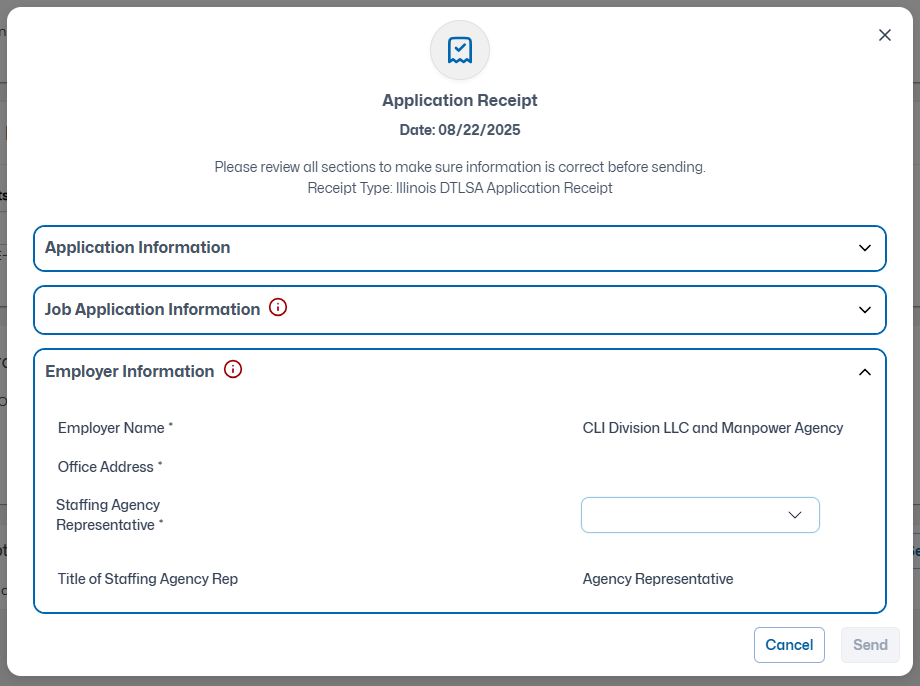
- Auto-populates based on job selection (job's office or talent's home office for General Apply)
- Staffing Agency Representative dropdown (active users with configured signatures)
- Title displays as "Agency Representative"
Delivery Options
- In Person: Opens receipt in new tab for printing
- Email: Sends receipt directly to talent's email address
Applicants will receive an email independent from any other emails sent via BOLD.
From: notifications@myavionte.com (if sent via automation. Otherwise it will respect the sender’s email configuration)
Subject Line: Your Application Receipt – {Job Name} (If there was no specific Job applied for, it will say “Your Application Receipt – General Application”.)
Body: {Talent First Name}, your {Job Name/General Application} application receipt as required by the State of Illinois is attached as a PDF for your personal records. Thank you for applying!
Attached: Application Receipt.pdf
Viewing Application Receipts
HCM User View
Users can view previously sent receipts in the Documents section of talent records, limited to receipts from offices they have access to.
Available information includes:
- Receipt Type - currently we only support Illinois DTLSA
- Signed By - column showing the representative (manual sends show user name, automatic sends show "via Automation")
- Created Date - date of the application receipt
- Related Job column with direct links (General Apply receipts show no link)
- Related Office - Office that is associated to the application
Talent User View
If administrators enable the Documents tab in the BOLD Talent Portal Profile (configured in Utilities > Talent Profiles), talent users can view their application receipts through their talent portal.
Email Notifications
Applicants receive receipts via email with the following format:
- From: notifications@myavionte.com (automatic) or sender's configured email (manual)
- Subject: "Your Application Receipt – [Job Name]" or "Your Application Receipt – General Application"
- Content: Personalized message with PDF attachment
For the automatic email, the From address is notifications@myavionte.com as indicated above. The Reply To for these emails can be set to display as what is configured in Thank You Emails. You can configure this by navigating to Utilities > System Email Settings > Thank You Email > Reply To Address.
Audit Export
Users with "Application Receipts Audit" permission can generate comprehensive audit exports through the Analyze section of BOLD.
Export Configuration
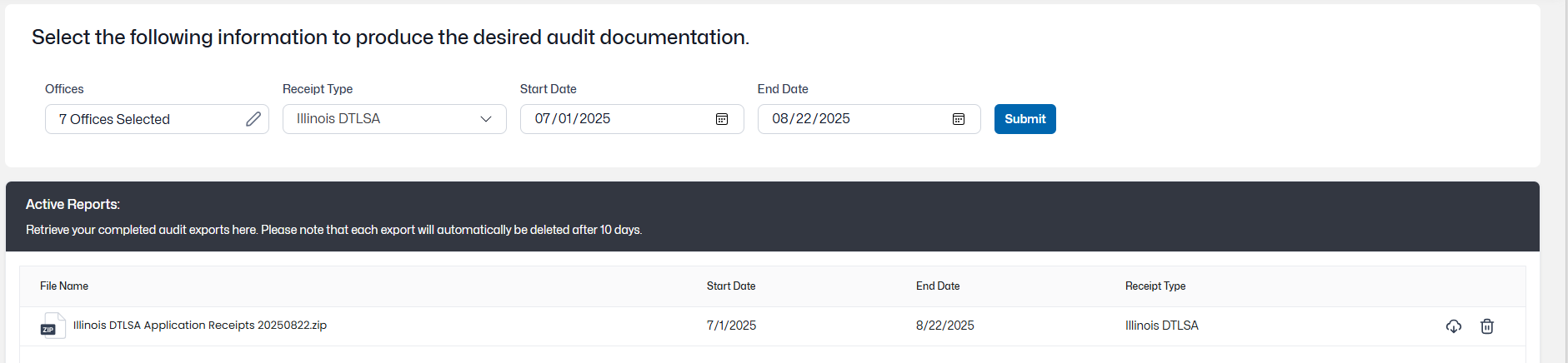
Filter options include:
- Offices: Select from offices you have access to for auditing (based on where talent applied, not talent home office)
- Receipt Type: Illinois DTLSA (currently the only supported type)
- Date Range: Start and end dates for application receipts
Important: Users can only access audit exports for offices they have full office access to. You will only be able to see and download export files that contain data exclusively from offices within your access permissions.
Export Process
- Click Submit to begin export generation
- Export appears in Active Reports section when complete (only if you have full access to all included offices)
- Email notification sent when export is ready:
From: notifications@myavionte.com
Subject Line: Application Receipts Audit Results
Body: Your request Application Receipts Audit export is ready to view! Click here to see your export results.
- Files remain available for 10 days unless manually deleted
- Export includes CSV manifest and PDF of each receipt
Comments
0 commentsPlease sign in to leave a comment.